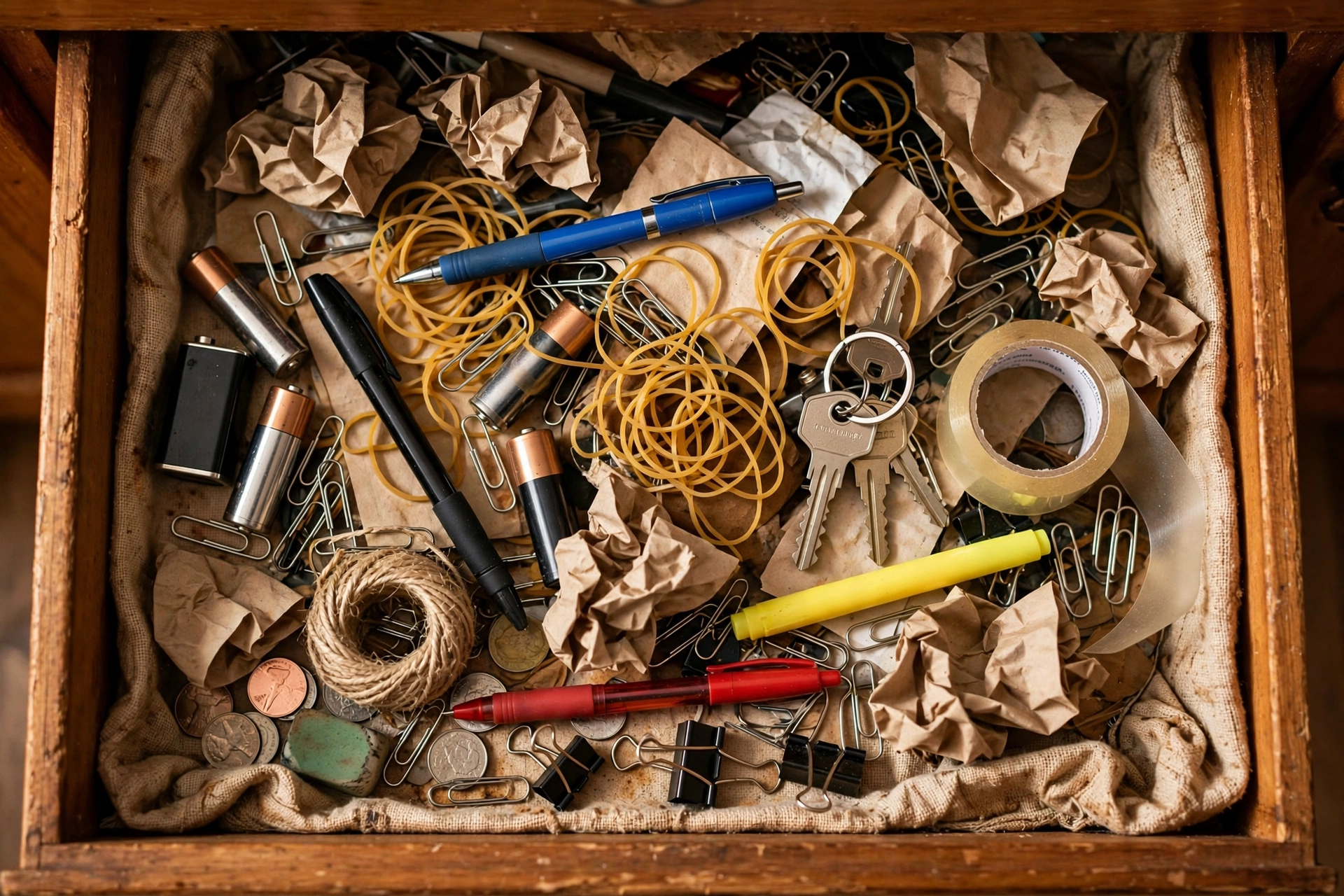


You’ve cleared out the closets. The junk drawer is now a thing of the past. But your phone holds 11,000 photos, your inbox boasts 4,000 unread messages, and your desktop looks like a virtual yard sale. Does it seem like it’s time to tackle the digital clutter in your life?
Digital clutter differs from physical clutter because it can creep up and hide in places you can’t see. It’s easy to have too much without thinking about it the way you would a growing pile of junk in the garage. You may not even be aware of just how much of it you possess until you actually stop and look. And worst of all, you carry it with you wherever you go.
This checklist draws on the same room-by-room method from our Room-by-Room Decluttering Checklist and applies it to the items in your digital life, minus the rooms (obviously). Check off each section as you work through it and discover maintenance methods that will help you sustain the decluttering long term.
Table of Contents
- How to Use This Checklist
- Before You Start: Back Up First
- Inbox Zero-ish: Email
- Photos and Videos
- Files and Cloud Storage
- Apps and Phone Home Screen
- Passwords and Accounts
- Subscriptions and Recurring Charges
- Browser and Bookmarks
- The Maintenance System
- Common Mistakes
- Frequently Asked Questions
How to Use This Checklist?
The same principles apply to digital clutter, with a few modifications:
- Go through each category one by one, from the most used (email) to the least (browser bookmarks)
- Finish one section before moving on to the next – if you half-heartedly empty your inbox, it’ll just get refilled faster
- Work in sprints: Digital tidying has a particularly strong effect on the psyche, and you can easily burnout at the 25-minute mark. Take regular breaks!
- Delete in batches, but make individual decisions: Empty the low-hanging fruit (newsletters you haven’t opened in months) first, then decide on the remaining items one by one. You’ll be surprised how often it’s not as simple as “delete” or “keep.”
- More on that in the next section, but trust me, you’ll need it.: You won’t get through everything at once, and that’s okay. Complete one section per night, and you’ll have a tidy digital life in seven days.
Inbox Zero-ish: Email
The inbox is the junk drawer of digital life. Everything lands in it and nothing ever leaves. We’re not trying to achieve inbox zero (a terrifying concept, for good reason), but we want to get to inbox one, or even inbox zero-point-five: an inbox we can actually use.
- Unsubscribe obsessively. Search for “unsubscribe” in your inbox and unsubscribe from every single newsletter, promotion, and notification that you don’t actually read. You’ll feel virtuous!
- Bulk-delete by sender. Most people have a handful of particularly egregious senders in their inbox (old promotional emails, notifications from social networks, expired travel deals from 2012).
- Delete all of these in one swoop. If you delete more than one message from a given sender, your inbox will automatically start deleting all the rest of them too.
- Archive everything else. The only messages that should remain in your inbox are ones that you either actively read or expect to reply to.
- Delete everything else. For messages that are more than 30 days old, select all of them at once. Your inbox is now searchable, so it should also serve as your filing cabinet. You don’t need folders.
- Set up filters for the future. Set up rules to automatically file or archive recurring, unimportant messages (receipts, newsletters you actually read, social network notifications). This will save you time in the long run.
- Deal with the in-box. Now deal with whatever essential, unread messages remain in your inbox. Respond to each one individually or file it away somewhere you can find it later.
- Disable email notifications. This will seriously curb how often you check email on your phone.
Going forward, remember to unsubscribe from everything, obsessively.
Before You Start: Back Up First
Before you delete anything verify that all the important stuff is backed up. Spend 30 minutes verifying each of these before you do any decluttering to avoid regretting it all later:
- Verify that your phone is backing up (iCloud, Google One, or whatever your preferred method is) and that the last backup was successful
- Back up your computer (external hard drive or cloud service) and verify that the backup is complete
- Export anything that cannot be replaced (family photos, important documents, etc.) to a second location (different cloud service or external hard drive)
- Note your current storage usage (phone/cloud/computer)
- Once you’ve verified everything is backed up, you can delete with confidence, knowing nothing will be permanently lost.
- The whole point of a backup is to let you delete with less risk. Whatever you delete will only be gone until you decide to restore it from your backup.
Photos and Videos
photos are probably the single largest category of digital clutter both in terms of emotional investment and gigabytes used. This step takes the longest, so it’s a good idea to split it into year-by-year or album-by-album passes.
- First, delete all the screenshots. If you have any, you can delete all at once. Look through your camera roll for screenshot icons – they tend to be one-time-use, either recipes, maps, or confirmation emails that are no longer relevant.
- Delete duplicates and burst photos. Your photo app will have a duplicate detection tool, and it’s important to run that. There are 14 nearly identical photos, only the best two should be kept.
- Delete all the out-of-focus photos. The out-of-focus, dark, accidentally captured, and anything else that could be deleted without hesitation should go.
- Delete all the photos from the last year or so in the same way. Sort photos by year, and tackle the oldest ones first – one year at a time. It helps to delete unordered photos, one year at a time.
- Remember to favorite your best photos. By marking the best photos as favorites, you will always have a growing gallery of your most precious memories. This is probably one of the easiest and most satisfying steps in the entire process.
- Make sure the photos are backed up somewhere safe and delete them from your device. Once the photos are backed up somewhere safe, they should be cleared from the device to make space. Enable optimized storage if the cloud option is available. This way, the phone will only store low-resolution copies of the photos.
- Delete the videos that no one will ever watch. The four-hour long video of a school play from three years ago, if no one has watched it – it can be deleted or edited to the most memorable parts.
A realistic estimate would be reducing the photo library by 30–50%. Of the photos in the camera roll, only 20% are meaningful, 40% are screenshots, duplicates, bursts, or out-of-focus photos, and the remaining 40% can be deleted.

Files and Cloud Storage
Cloud drives are the digital equivalent of an attic. Full of old files that no one dares to use. It’s time for a clean-up.
- Empty the trash/recycle bin. Deleted files can still take up space. Empty it everywhere, including the cloud drive and email trash.
- Sort downloads. The downloads folder is for files you are about to delete. Sort by date, and delete or file anything older than 6 months that you haven’t opened.
- Bulk-delete by sender. Sort or search by who sent you emails with the most useless content in bulk. Delete all of them in one motion.
- Consolidate duplicates. If you have multiple copies of something, such as different versions of a document, delete the older ones.
- Delete installers and old exports. If you can reinstall it, you don’t need to save the installer file. This applies to phone backups, software installers, and old file exports.
- Organize everything else. A simple folder structure will get you much further than complicated systems. Have a few folders (5-8) with simple names. Don’t overcomplicate the organization; it should be simple enough to find things fast.
- Check shared drives. All shared drives you are listed on also eat into this storage. Remove yourself from any unneeded shared drives.
- Review large files. Sort by size and look at the largest files; old video projects and large disk images may be prime candidates for deletion.
Apps and Phone Home Screen
The average user utilizes only a fraction of the apps on their devices. The rest just take up space on your phone and home screen.
- Delete the apps you don’t use. If you can’t remember the last time you’ve used an application, chances are, you don’t need it. (You can always download it again; most of the time, the data you’ve saved is in the cloud!)
- Delete or Offload apps you don’t use often (iPhone). Offloading apps frees up space on your phone while saving the data in case you decide to open it again.
- Organize your home screen. Keep a manageable number of apps on your home screen, ideally one full screen’s worth of widgets and apps you use daily. Move the rest to the app library or organize them into folders to keep your home screen less cluttered.
- Audit your app permissions. While you’re cleaning, go through each app and revoke any permissions it doesn’t need. Decluttering app permissions is a great way to improve your phone’s security while you clean up unused apps.
- Delete old games and their cache. Games are notorious for hogging storage space, so if you no longer play an old game, delete it and its cache.
- Clear apps’ cache. Some apps can take up several gigabytes of space if you’re not careful. Clear the cache for messaging apps, browsers, and social media apps in your settings. Your messages and logins usually stay saved even after you clear an app’s cache.
- Update everything. Outdated apps can be a security risk, so it’s important not only to remove the apps you don’t use, but also to update the ones you do. After updating, delete any apps that seem unnecessary.
Passwords and Accounts
This section is partly about decluttering and partly about bolstering your online security. It should be one of the highest priorities on this list.
- Get a password manager (if you aren’t already using one). It’s crucial to your online security, especially if you’re using reused passwords or keeping your passwords written down somewhere insecure. Everything should be moved into the password manager.
- Change all of your reused passwords. If you’re worried about privacy or convenience, choose an authenticator app instead of text messages for two-factor authentication (2FA). All of your email, banking, storage, and social media should have unique, strong passwords, which the password manager will be able to generate for you.
- Delete any old accounts you’ve forgotten about. This includes free trials, shopping accounts, and anything you signed up for in the last five or more years that you no longer use. The less clutter you have, the better.
- Remove old devices from your accounts. Check the security tab on your Google, Apple, and social media accounts to view devices that are currently signed into your accounts and log them out if you don’t recognize them.
Review any “Sign in with Google/Facebook/Apple” authorizations and log out of any apps or sites you aren’t using anymore.
Subscriptions and Recurring Charges
The average household has more subscriptions than they realize – and they’re paying for them whether they use them or not. That’s why you should declutter your subscriptions: the upside is undeniable.
- List every subscription out there. Pull out three months of bank/credit card statements and list every subscription you have, recurring or otherwise. The goal is to identify the abandoned subscriptions in your life.
- Cancel what you don’t use. If you know you haven’t used it in a while, go ahead and cancel. (It’s easy enough to resubscribe if you find out later that you did want it – and you’ll probably forget to do it otherwise.)
- Get rid of those unwanted free trials. If it was a free trial that turned into a paid subscription, you can safely cancel those as well, before the next billing date rolls around. Free trials turning into paid subscriptions are, without a doubt, the most common subscription clutter.
- Consolidate, if possible. If you have two music services or two cloud storage services, pick one and cancel the other.
- Downgrade, if possible. If the subscription you want to keep offers an annual billing option and you’re paying monthly, downgrade to the cheaper plan. The same goes for other subscriptions that offer cheaper alternatives; if you’re using the ad-supported version of a service, make sure you’re not on the ad-free tier by accident. It’s easy to do when you’re not actively watching.
- Set reminders for every subscription you kept. Set a reminder a week before the subscription renews every year (or every six months, depending on the subscription), to remind yourself that it’s coming due again. Future-you will thank you.
- Check the app store. Open the settings on your phone and look at the subscriptions listed under your accounts (iPhone) or the Google Play Store (Android). There might be some subscriptions you didn’t even realize you had.
Once you’ve gone through everything, add up the amount of money you saved by canceling subscriptions. Most people end up with a sum between $20 and $60 per month.
That’s the decluttering dividend, the extra money you earned by going through this process. (As for the other half of the equation – how to lower your electricity bill at home – we’ve got a guide for that.)

Browser and Bookmarks
Last and lightest the digital analog of dusting off the shelves after the big cleanup.
- Purge bookmarks. Rid yourself of dead links, abandoned sites, and those 20 articles you promised yourself you’d read this week. (You won’t. Let them go.)
- File surviving bookmarks into sensible categories. Most people only need a dozen or so folders: work, personal, reference, read later, to keep things tidy.
- Trim your browser extensions. Every add-on slows down your browsing and compromises privacy. Keep the good ones, purge the rest.
- Close those 47 tabs. Bookmark the three you’ll actually need, then close the others. Tabs are a productivity hazard.
- Clear your cache. Browsing data, cookies, and website storage get deleted anyway, so do it manually once a month. Speeds up your browser and thins the tracking data websites collect on you.
The Maintenance System
Digital clutter returns faster than physical clutter because new inputs never stop. Five habits keep it from coming back:
| Habit | Frequency | Time |
|---|---|---|
| Unsubscribe on sight | Ongoing | 10 seconds per email |
| Screenshot purge | Monthly | 5 minutes |
| Photo cull (favorites + deletes) | Monthly | 15 minutes |
| Subscription audit | Quarterly | 20 minutes |
| Full section review | Yearly | One evening |
- Unsubscribe at first sight. For every unwanted email, unsubscribe right then and there. Don’t put it off.
- Monthly screenshot purge. Spend five minutes, once a month, deleting photos and videos that you’ll inevitably forget about but will continue to take up space.
- Quarterly subscription audit. Take a look at your bank statement and credit card charges every three months to catch any unwanted subscriptions. Set a twenty minute timer for this task.
- One in, one out for apps. For every new app you install, delete an old app. Think of it as a numbers game: if you buy a new one, you have to sell an old one.
- Annual life review. One night per year, go through this list once again and think about where your digital life might be headed. Maybe tie this to your fall home maintenance checklist as an annual reminder to clean up after the summer rush of digital shopping. After all, life moves fast, and it’s hard to keep up.
Common Mistakes
- Decluttering without backup. Deleting 5,000 photos without verifying a backup is not decluttering – it’s a gamble. Always backup before deleting
- Focusing on inbox zero instead of inbox usability. Being a perfectionist makes it impossible to successfully declutter your digital life. You can’t have an organized inbox if it contains archived and filtered messages.
- Organizing before deleting. Don’t organize your files into complex hierarchies before deciding which ones to keep. When organizing your physical space you delete first, then organize what’s left. Do the same for digital files.
- Keeping every single photo. Just because it’s on your phone doesn’t mean you have to keep it. Photos that aren’t clear, are duplicates, or were taken accidentally shouldn’t clog up your storage.
- Not unsubscribing. This is the only task on this list that directly generates revenue. The other items on this list save you time, but this one pays you. Don’t skip it just because the ads are annoying.
- Working on everything at once. Your brain doesn’t handle massive digital decluttering sessions well. If you work on everything at once, you’ll likely give up after spending hours on one task.
- Finishing everything in one sitting. Doing everything in one big session is a recipe for disaster. Even when decluttering physical items, it’s best to pace yourself.
Frequently Asked Questions
How long does it take to declutter digitally?
6-10 hours in total, planned out over a week. That breaks down to email (1-2 hours), photos (2-4 hours, biggest category), files (1 hour), apps (45 minutes), passwords (30 minutes), subscriptions (30 minutes), and browser (20 minutes), with each category set aside for 25-minute sprints.
In which order should I tackle my digital declutter?
First emails (highest impact per hour), followed by photos (biggest storage win), files, then apps, passwords, subscriptions, and finally bookmarks.
Can I just bulk delete old emails?
Always back up your email first (most providers have an export function), then go ahead and delete – but consider archiving instead of deleting for messages you’re unsure about.
Archived messages still take up space but appear in a separate folder, so think of it as deleting with a safety net. For bulk deleting, save the spam, marketing emails, and other time-wasting messages that you already know you’ll ignore and never miss.
How do I get rid of photos without deleting the precious memories?
That’s where the 3 pass method comes in handy – on the first pass, delete the obvious – low quality photos, photos of the screen, and other useless or annoying shots that don’t serve any purpose.
On the second pass, go through the photos year by year, and delete what doesn’t evoke a memory. On the final pass, go through the remaining photos and favorite the meaningful ones. Assuming you’ve backed up your photos to the cloud already, there’s nothing left to lose.
Should I shell out for cloud storage or use the free version?
It depends on how much you’re using. The free version (5-15gb, depending on the provider) will quickly fill up with photos, and videos.
If you’re regularly getting storage full alerts, it’s worth getting a small plan to avoid the annoyance of constant scanning.
Most providers have an entry-level plan for a couple of dollars per month, which is less expensive than spending hours and hours trying to clear up space.
How often should I go through this digital declutter checklist?
The maintenance tasks (monthly screenshot purge, quarterly subscription review) should be plenty to keep most people on top of.
As for the full run-through, once per year is good enough – the digital side of life tends to accumulate faster than physical clutter.
Lighter, Faster, Yours Again
After a week of 25 minute sprints, your digital life has been given a fresh start – your phone has more space, your emails are easier to navigate, your photos are organized and taken up less space, and most importantly, no one is quietly charging you $15 per month for a service you don’t remember signing up for.
Go through the email checklist tonight to see the biggest improvement in the least amount of time. If your physical house feels cluttered too, we have a Room-by-Room Decluttering Checklist that uses the same method to help you organize your house.
Sponsored · RecommendedSomething worth a look before you goHandpicked for HomeBlesh readers. Tap to explore it.Explore Now